



Download RPostOne Email Encryption Add-In for Microsoft Outlook

RPostONE for Outlook

Work Securely Where Communications Happen.

RPostONE for Outlook enhances Microsoft Outlook with AI-infused communications, cybersecurity resilience, digital transaction management, and intelligent content control—all without disrupting the way users already work.

Communicate securely with direct-delivery email encryption, legally admissible proof of delivery, secure large file sharing, eSignatures, and rights-protected documents, while RAPTOR™ AI helps identify threats in progress, reduce human error, and protect sensitive communications before, during, and after delivery.

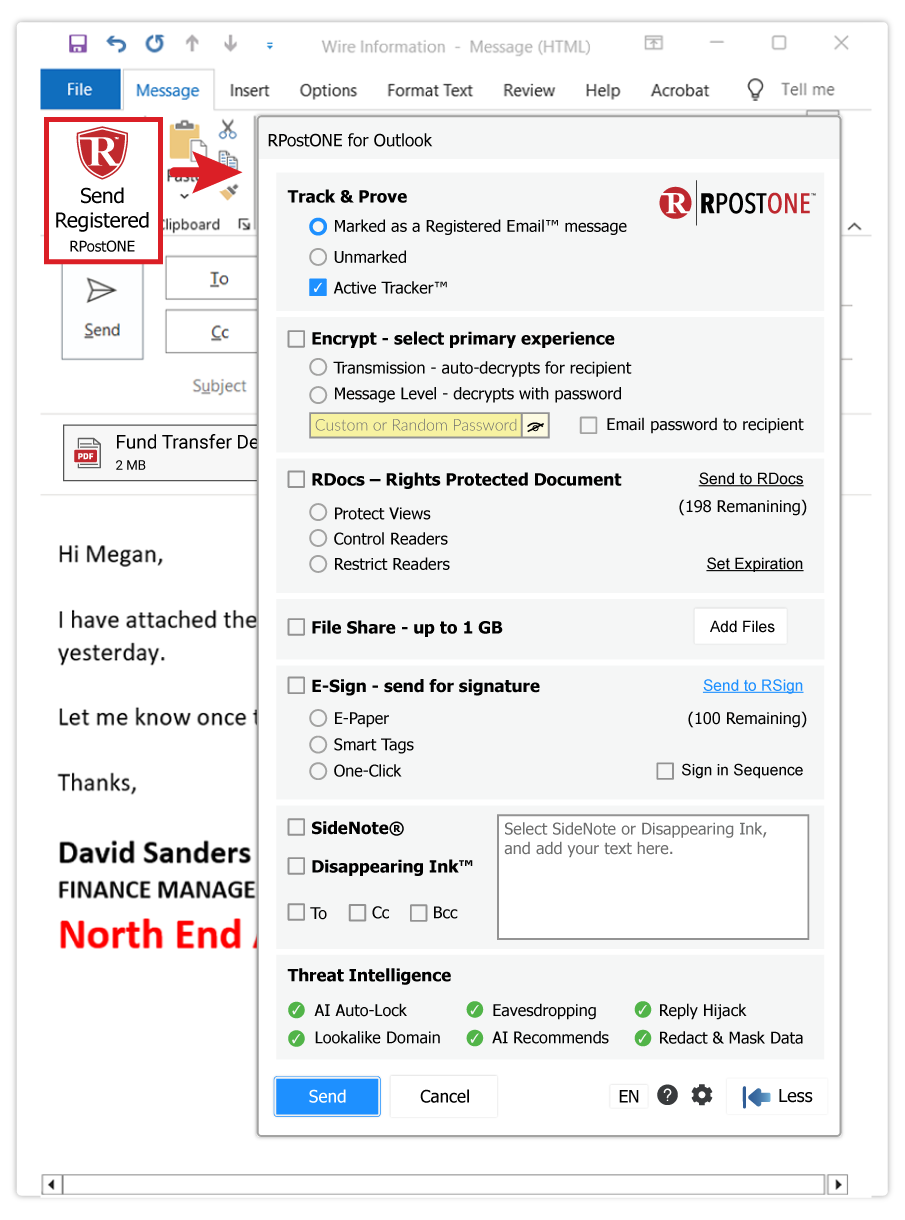
Installing RPostONE for Outlook adds the Send Registered™ button directly to the Microsoft Outlook compose window, providing immediate access to enterprise-grade communication security, compliance, and intelligent content control capabilities.

Powered by RAPTOR™ AI, RPostONE for Outlook continuously helps identify suspicious activity, recommend appropriate protection, detect recipient risks, automate security decisions, and help prevent sensitive information from being exposed—all from within Microsoft Outlook.

Download 32-bit Installer Download 64-bit Installer

RPostONE for Outlook uses your default Outlook mail account configured in Microsoft Outlook. Those using the existing app can now upgrade to the latest RPostONE for Outlook.

RPostONE Capabilities

Compliance

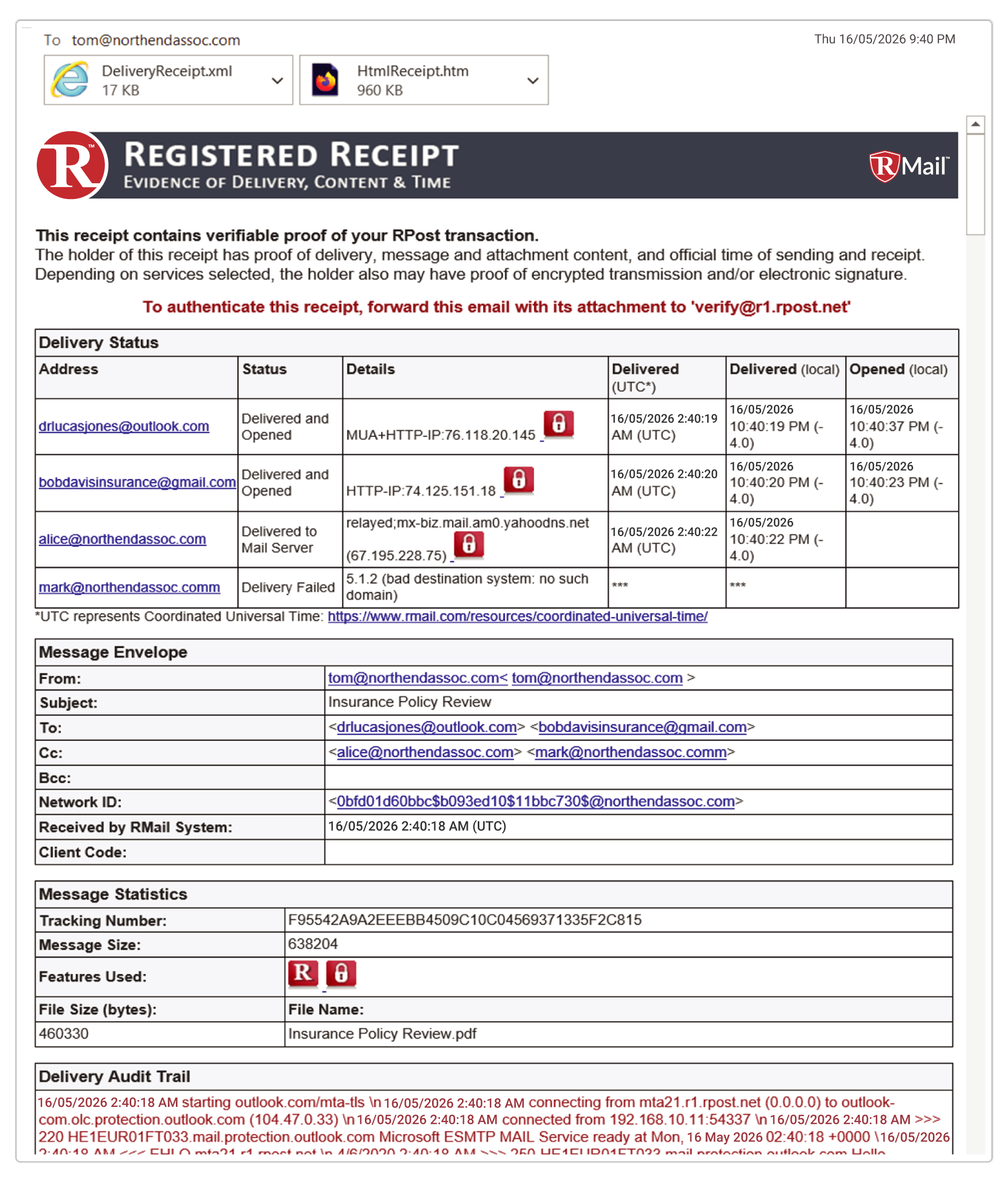
  • Track & Prove: Send Registered Email™ messages and receive a Registered Receipt™ with court-admissible, time-stamped evidence proving who sent what, when it was delivered, with the exact content transmitted.
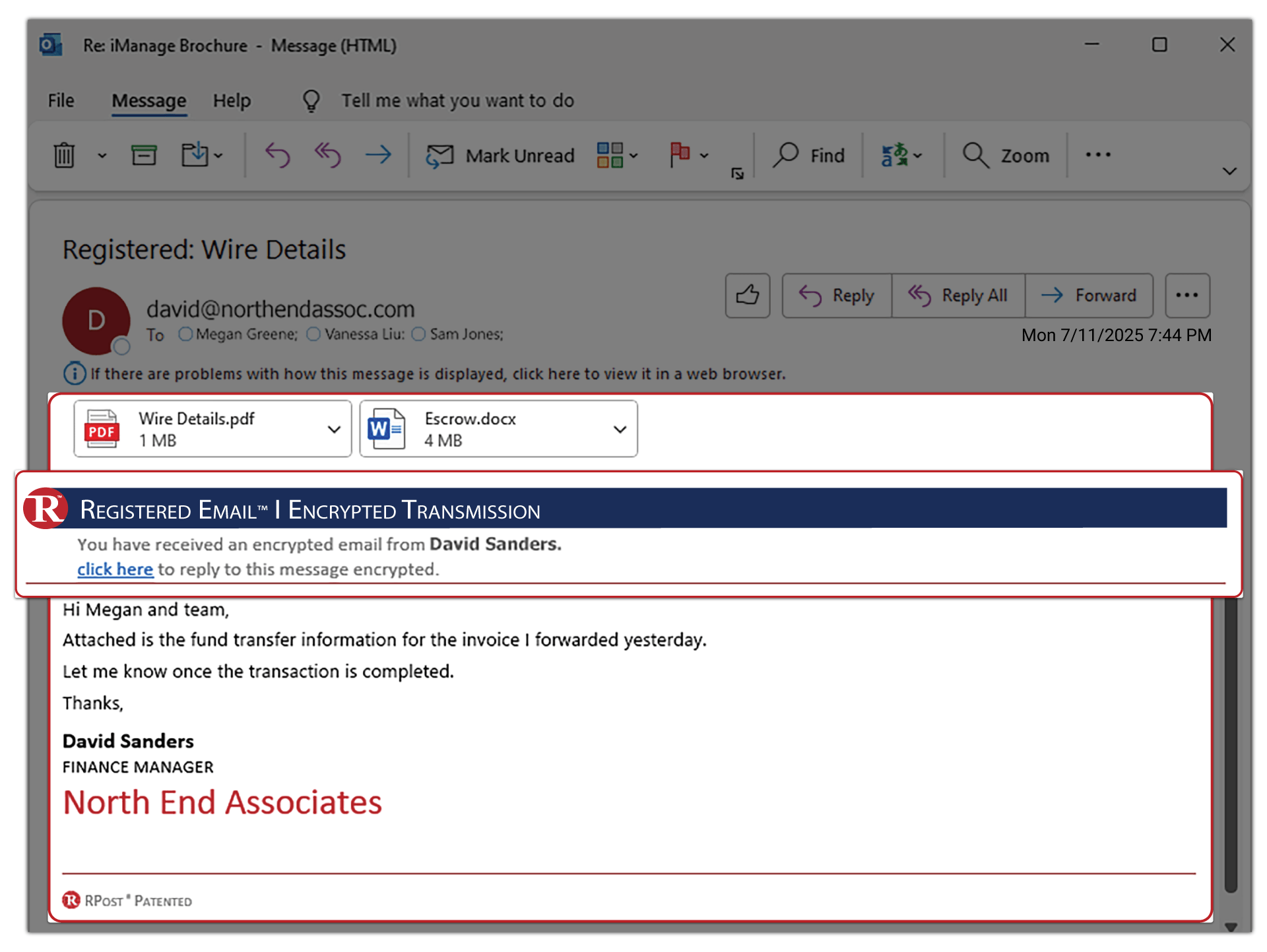
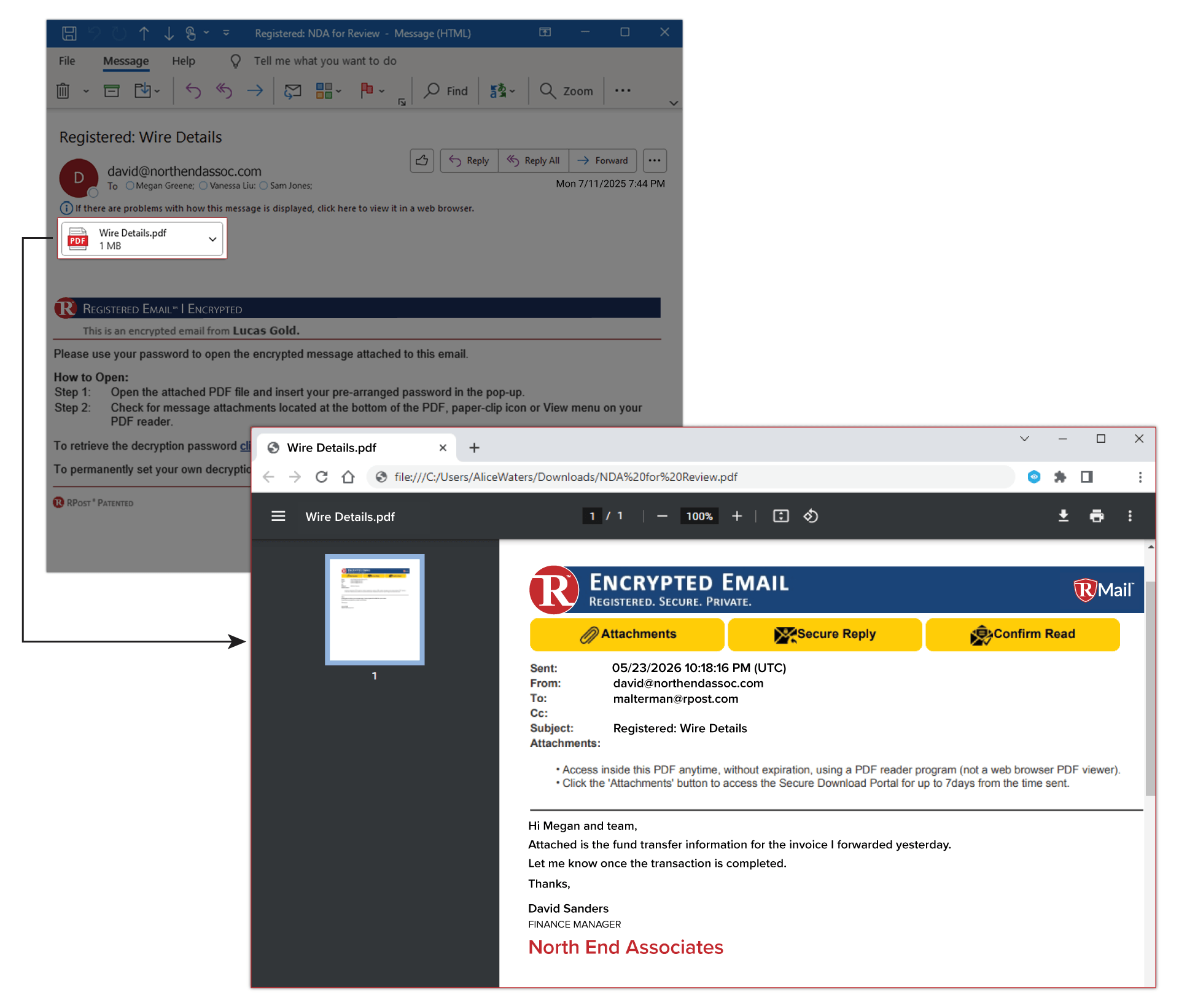
  • RMail® Email Encryption: Send encrypted email with direct delivery so recipients can securely read and reply within their normal email workflow, without portals, software downloads, or account registration. Receive a Registered Encryption™ receipt with auditable proof of encryption and privacy compliance.
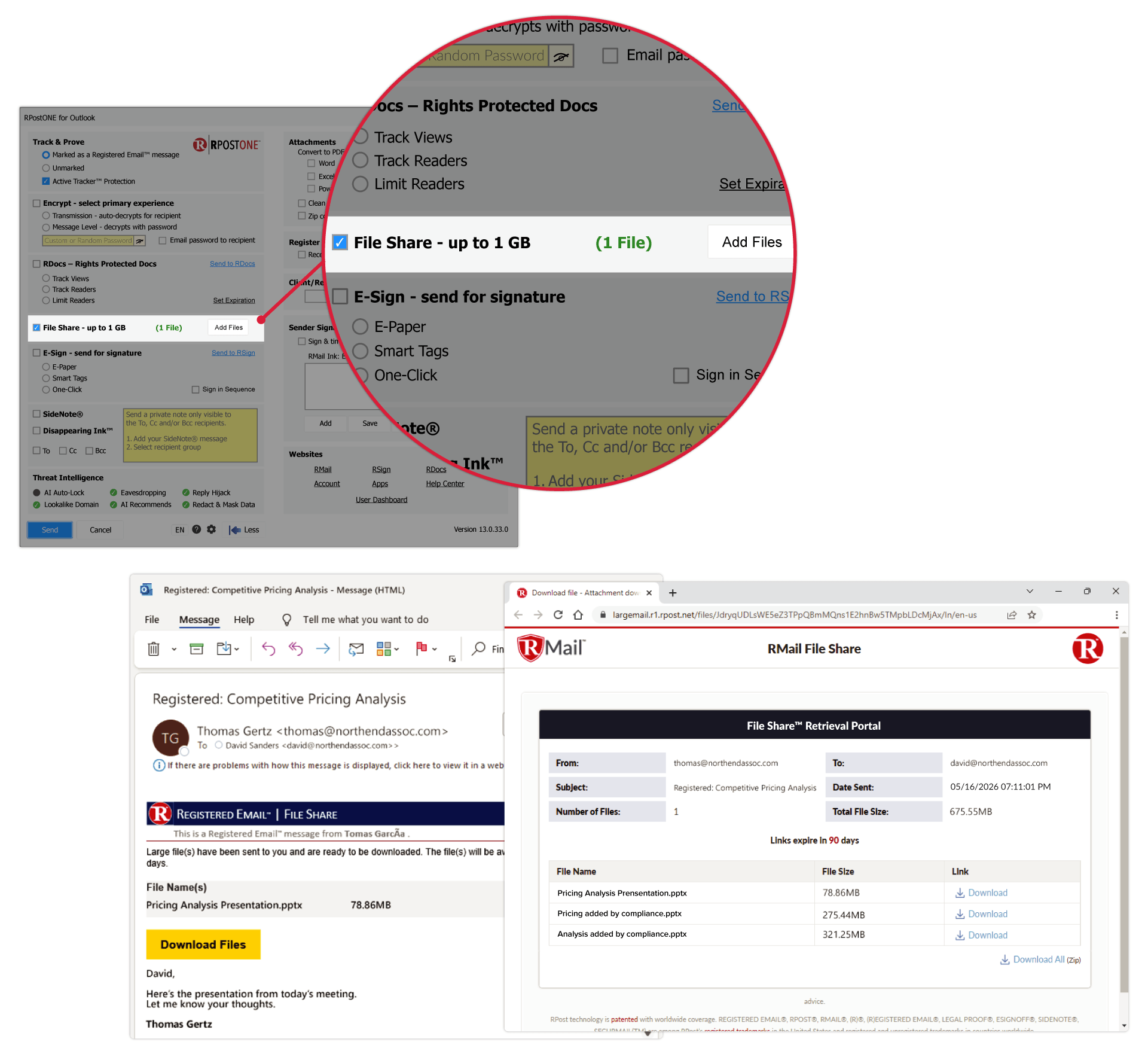
  • Secure Large File Share: Securely send and track files up to 1 GB directly from Outlook. Apply encryption, configurable expiration, and access controls while maintaining complete audit trails.
  • ViewProof™: Receive court-admissible proof that recipients viewed specific tagged portions of an email message. *

Cybersecurity Resilience

  • RAPTOR™ AI Intelligence: Delivers active threat intelligence, intelligent data protection, real-time third-party risk detection, and automated protection to help stop attacks before sensitive information is exposed.
  • Eavesdropping AI™: Detects suspicious recipient activity using Active Tracking technology and generates intelligent alerts based on unexpected locations, devices, VPNs, proxy servers, or other indicators of compromise.*
  • AI Auto-Lock™: Automatically blocks access to protected content when suspicious activity is detected, helping prevent cybercriminal reconnaissance and unauthorized access to sensitive information.*
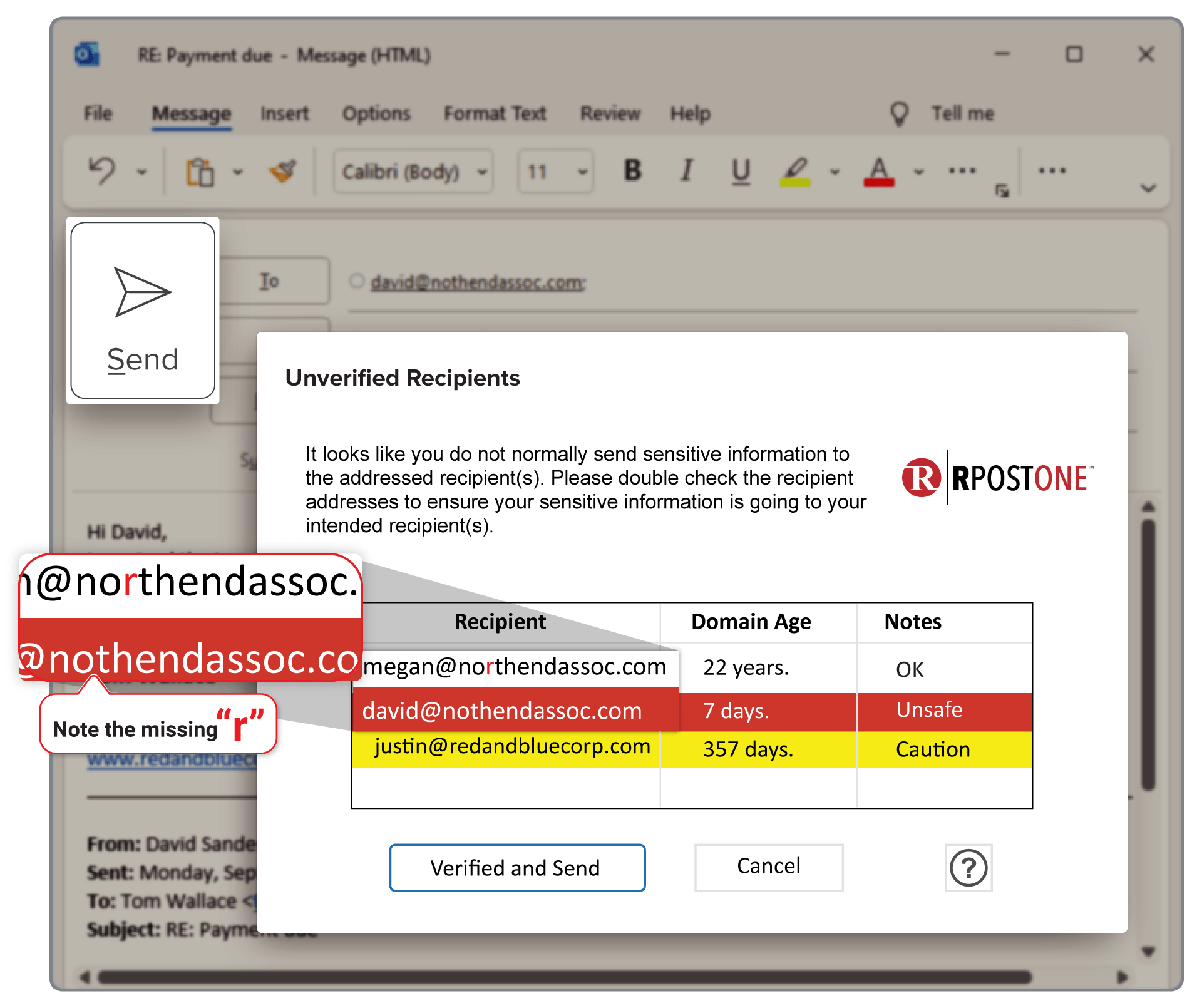
  • Right Recipient™ – Domain Lookalike Detection: Alerts users when it detects a lookalike and/or newly registered recipient domains before an email is sent, helping prevent misdirected communications and Business Email Compromise (BEC) attacks.
  • Right Recipient™ – Reply Hijack Alert: Warns users when replying to email conversations that may have been compromised or manipulated, helping reduce the risk of reply hijacking and Business Email Compromise (BEC).
  • RMail Recommends™: Alerts users when message content may require additional protection, recommending encryption, tracking, or other security measures before delivery.
  • Double DLP™: Analyzes recipients and message content before delivery. When configured policies identify potential risks, Double DLP™ pauses the message, allowing users or administrators to review or stop delivery before sensitive information leaves the organization.*

Intelligent Content Controls

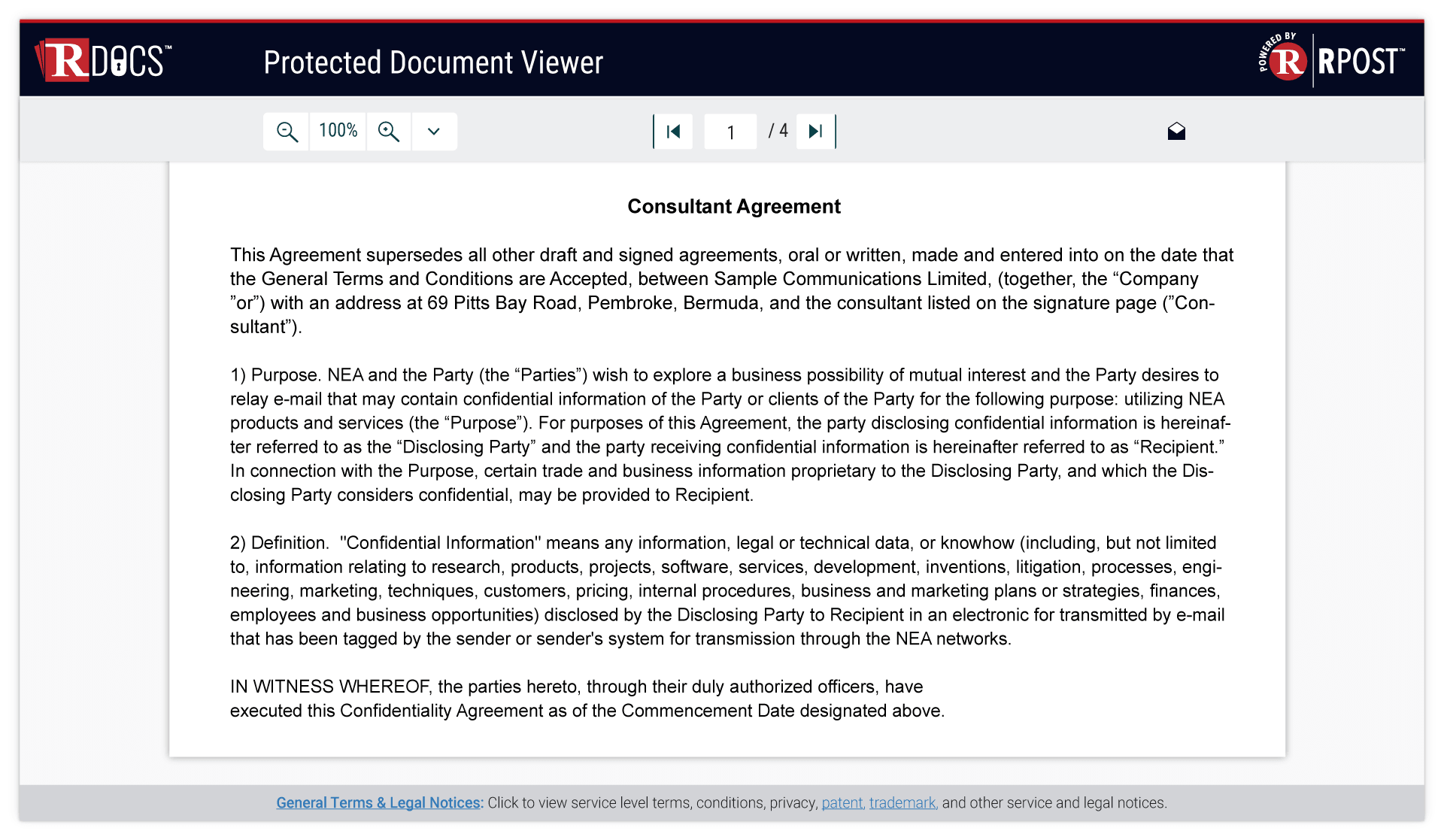
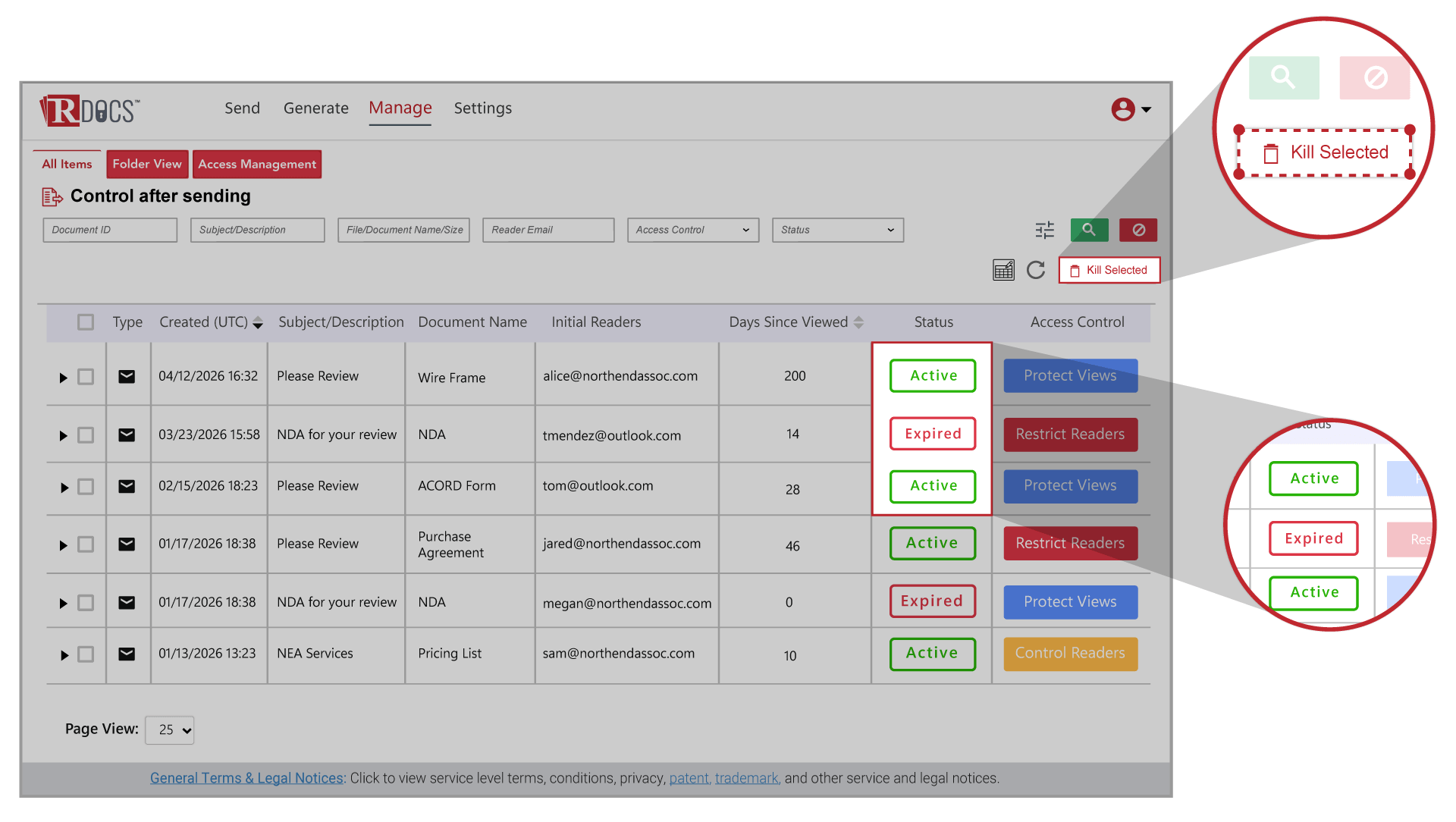
  • RDocs™ Rights-Protected Documents: Convert virtually any file into an RPD™ (Rights Protected Document), allowing you to track recipient activity, restrict access, modify permissions remotely, revoke access, kill documents after sending, and maintain control even after the send. *
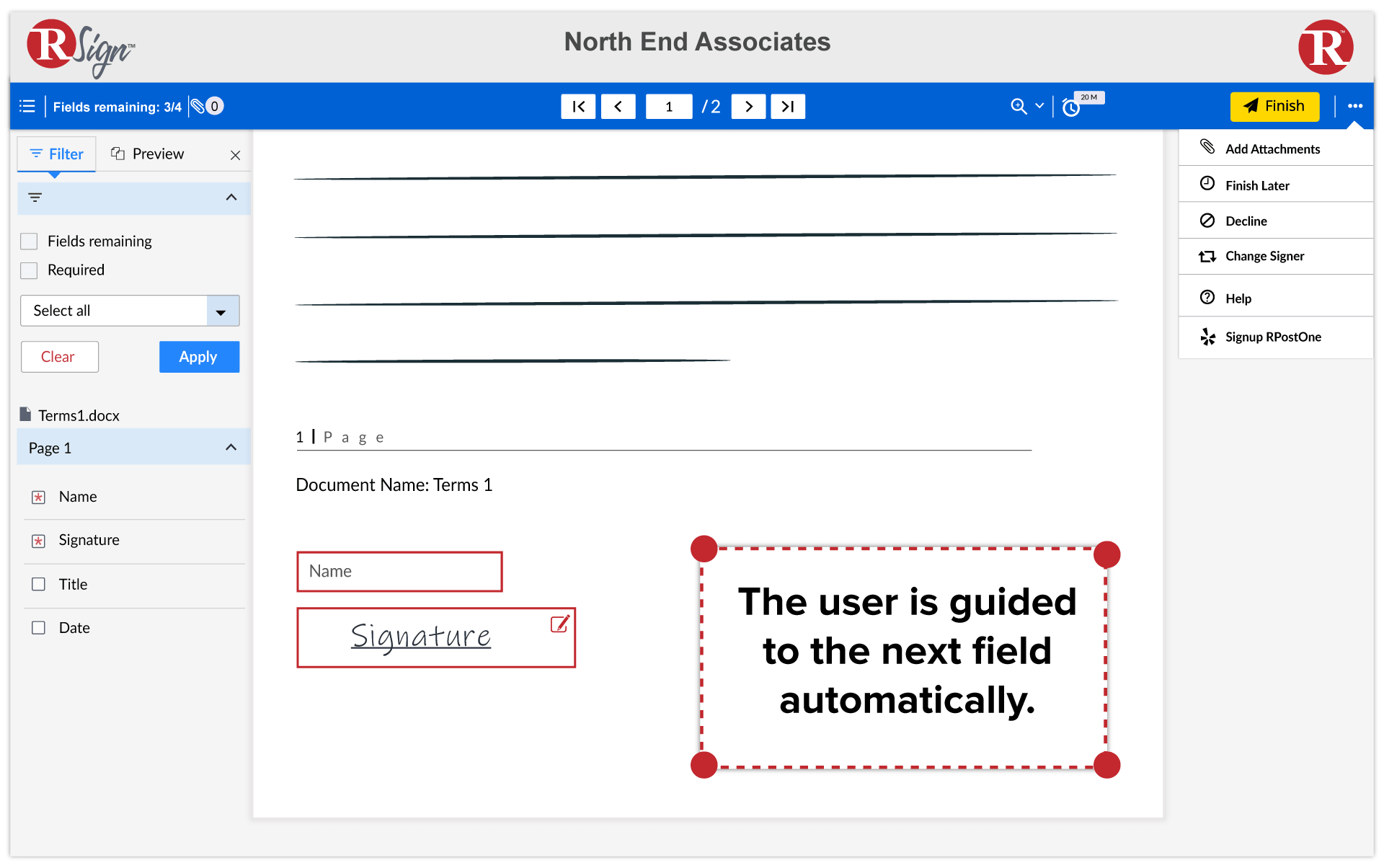
  • eSignatures: Launch RSign® eSignature workflows directly from Outlook or simply attach and send (no further configuration needed) as a Registered Email message that auto-formats so the recipient can electronically sign. Accelerate approvals while maintaining complete legal evidence and audit trails.
  • Disappearing Ink™: Configure selected portions of an email to disappear after a specified time, number of views, or viewing duration, reducing long-term exposure of sensitive information.
  • Redact Reply™: Automatically remove tagged confidential content from recipient replies while preserving the original message within the sender's records and Registered Receipt™ evidence. *
  • Redact Bcc™: Prevent accidental exposure of blind-copied recipients by removing hidden recipient information from reply-all scenarios. *
  • SideNote®: Add private contextual notes to copied or blind-copied recipients without exposing that information to other recipients. When combined with Disappearing Ink™, notes can automatically disappear after being viewed.
  • Digital Seal®: Create authenticatable, visually timestamped PDF attachments (such as invoices) that help recipients verify document authenticity and reduce the risk of impersonation and document fraud.

* Some capabilities may require Professional Services enablement or specific licensing. 
Product Tour

Install RPostONE for Outlook

Before you begin

Confirm whether your Microsoft Outlook installation is 32-bit or 64-bit.

  • Outlook 2013 or newer: File → Office Account → About Outlook
  • Outlook 2010: File → Help → About Outlook

Note: The Outlook bit version determines which installer to download. Windows can be either 32-bit or 64-bit—the Windows version does not affect the installer you need.

Installation

  1. Close Microsoft Outlook.
  2. Download the installer that matches your Outlook version (32-bit or 64-bit).
  3. Run the installer and follow the installation wizard.
  4. Reopen Microsoft Outlook.
  5. The Send Registered™ button will appear in the Outlook compose window.

Need help? Visit the Installation Support Center or review the Installation Guide.

Getting Started

INSTALLATION GUIDE

Customer Stories

The Doctors Company

Health Tech

We’re helping The Doctors Company keep your doctor focused on cures by simplifying private communications.

Read More

Marshall & Sterling Insurance

Insur Tech

We’re helping Marshall & Sterling support its community of clients by putting more communications assurance into their insurance.

Read More

United Nations WIPO

Gov Tech

We’re helping the United Nations’ WIPO protect your intellectual property to maintain order worldwide.

Read More

App Info

Languages Supported:

English (version 13.0.54)

International Languages (version 13.0.54):

Danish, Dutch, English, French, German, Italian, Latvian, Lithuanian, Polish, Portuguese, Spanish.

Minimum Requirements:

Operating System Windows
Windows version 7 (32/64 bit), 8 (32/64 bit), 10 (32/64 bit), 11 (32/64 bit)
Office Version 2010, 2013, 2016, 2019, Office 365 full install (32/64-bit)
Function model Outlook client runs locally or through terminal services
Program size 5MB
Program type Outlook COM Add-In using IDTExtensibility for a shared Add-In. Shimmed to provide an isolated, unique AppDomain.
.NET Framework 4.0 or greater.
Install package Windows Installer MSI. Installs using Visual Studio Installer technology for Windows Installer.
Additional applications needed to run or start-up None
Specific application conflicts None
Uninstall Control Panel, Programs (clean uninstall)
Deployment Single user, user group or company-wide deployment
Updates Manual upgrades only
Folder Location For (32-bit) - C:\Program Files (x86)\RMail
For (64-bit) - C:\Program Files\RMail
Requirements Valid inbound and outbound email account.
Administrative rights required for installation only.
Recommended email format HTML or plain text (Rich Text not recommended)
Licensing Per user, shared group of users, or usage-based
Feature customization Outlook ‘Options’ panel or Configuration file (XML)
“Send Registered” Button location Above the native Outlook “Send” button.